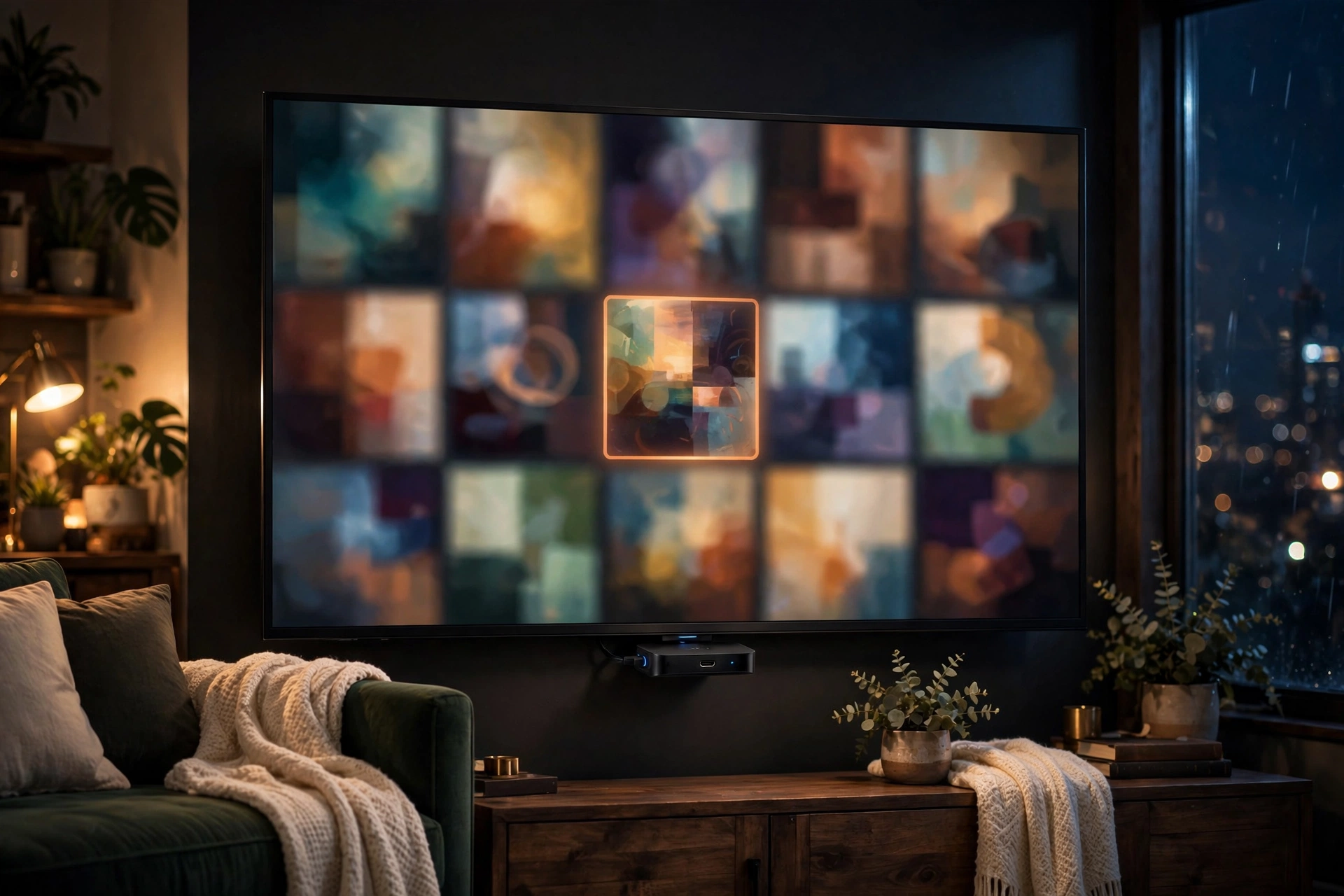
Amazon’s Fire TV Stick is one of the most popular streaming devices in the world — and it is a perfect match for Dooflix. The big screen, the simple remote, and the low price make the Firestick an ideal way to watch free movies and shows from the comfort of your sofa. The only catch: Dooflix is not available in the Amazon Appstore, so you will need to sideload it. Do not worry — the process is straightforward and takes about ten minutes.
In this 2026 guide, we show you exactly how to install Dooflix on Firestick and Fire TV using the Downloader app, step by step, with screenshots described at every stage. We also cover the settings you need to change first, how to keep Dooflix updated on Fire devices, and fixes for the most common installation problems.
What You Need Before You Start
Before installing, make sure you have the following:
- An Amazon Fire TV Stick (any generation), Fire TV Stick 4K, or Fire TV Cube, connected to Wi-Fi.
- At least 500MB of free storage for the app and its cache.
- The Downloader app, available free from the Amazon Appstore — this is the tool you will use to fetch the Dooflix APK.
- About ten minutes of your time.
No rooting, no jailbreaking, and no hacking is required. Sideloading is a legitimate, built-in capability of Fire OS.
Step 1: Enable Apps from Unknown Sources
Fire OS blocks installations from outside the Amazon Appstore by default. You need to permit them for the Downloader app:
- From the Firestick home screen, go to Settings (the gear icon).
- Select My Fire TV, then Developer Options.
- Turn on Install unknown apps (on older Fire OS versions this is labelled “Apps from Unknown Sources”).
- Find Downloader in the list and set it to On.
If you do not see Developer Options, go to Settings > My Fire TV > About and click your device name seven times to unlock it — a hidden menu used by Amazon on newer Fire OS versions.
Step 2: Install the Downloader App
If you do not already have Downloader:
- From the home screen, select Find, then Search.
- Type Downloader and select the orange Downloader app by AFTVnews.
- Click Download (or Get) and wait for it to install.
Step 3: Download the Dooflix APK
- Open the Downloader app. Grant it storage permission if asked.
- In the URL bar, enter the official Dooflix download address: https://dooflix.pro.in/download/ — always use the official site to avoid tampered files.
- Press Go. The download page will load inside Downloader’s built-in browser.
- Tap the download button for the latest version (v1.0.8) and wait for the APK to finish downloading.
Step 4: Install Dooflix on Your Firestick
- When the download completes, Downloader automatically opens the installation prompt.
- Select Install at the bottom right.
- Wait for the “App installed” confirmation.
- Choose Done — do not open the app just yet.
- Downloader will ask if you want to delete the APK file. Select Delete twice to confirm; this frees up precious Firestick storage.
Dooflix is now installed. You will find it under Your Apps & Channels — press and hold the Home button, or go to the app row and select “See All.” For quick access, highlight Dooflix, press the menu button on your remote, and choose Move to front.
First Launch: Recommended Settings
When you first open Dooflix on a Firestick:
- Choose your default video quality. On a 4K Fire TV Stick, select 1080p or 4K for the best picture; on older HD sticks, 720p keeps playback smooth.
- Pick an external player (optional). VLC for Fire TV handles more formats and offers better subtitle controls than the built-in player.
- Enable subtitles in your preferred language so they load automatically.
Navigation works with the standard Fire TV remote — the directional pad moves through menus and the centre button selects. For typing searches, the on-screen keyboard is usable, though pairing the Fire TV phone app makes long titles much easier.
How to Update Dooflix on Firestick
Dooflix will not update itself on Fire OS. When a new version is released, repeat the Downloader process: enter the official download page URL, download the new APK, and install it over the existing app. Your watchlist and settings are preserved. Remember to delete the installer file afterwards to save space.
Troubleshooting Common Firestick Issues
“App Not Installed” Error
This usually means there is not enough free storage, or a conflicting signature from a previous install. Free up space by clearing app caches (Settings > Applications > Manage Installed Applications) and try again. If the problem persists, uninstall the old Dooflix completely and reinstall fresh.
Downloader Cannot Reach the Download Page
Check your Wi-Fi connection and make sure the URL is typed exactly. If the page loads but the download button does nothing, try enabling JavaScript in Downloader’s settings or use the built-in browser’s desktop mode.
Dooflix Buffers Constantly
Buffering on Firestick is usually a network issue: move the stick closer to your router or use an Ethernet adapter, close background apps, and try a lower stream quality. Clearing Dooflix’s cache also helps.
Is It Safe to Sideload Dooflix on Firestick?
Yes, sideloading itself is safe and does not void your warranty. The important part is what you sideload — always get the APK from the official Dooflix site, never from random links in videos or forums. For a deeper dive, read our Dooflix safety guide, and see our device guides for Android, PC, and iOS.
Frequently Asked Questions
Can I install Dooflix on Firestick without a computer?
Yes. The entire process happens on the Firestick itself using the Downloader app. No computer, USB drive, or extra cables are needed.
Is Dooflix free on Firestick?
Completely free. There is no subscription, no account, and no payment step — on Firestick or any other device.
Will sideloading Dooflix void my Firestick warranty?
No. Installing apps from unknown sources is a built-in Fire OS feature. It does not require rooting and does not void your warranty.
Why is Dooflix not in the Amazon Appstore?
Amazon’s app policies, like Google’s, do not permit apps that aggregate unauthorised copyrighted streams. That is why Dooflix is distributed as a direct APK download instead.
Does Dooflix work with the Firestick remote?
Yes. Dooflix’s interface is navigable with the standard Fire TV remote’s directional pad and select button. The Fire TV smartphone app also works as a keyboard for easier searching.
Start Streaming on the Big Screen
That is everything you need to install Dooflix on Firestick or Fire TV. Once set up, you get the full Dooflix library — movies, series, subtitles, and HD streams — on your television, controlled from your sofa. Grab the latest APK from the official Dooflix download page and follow the steps above; you will be watching in minutes.