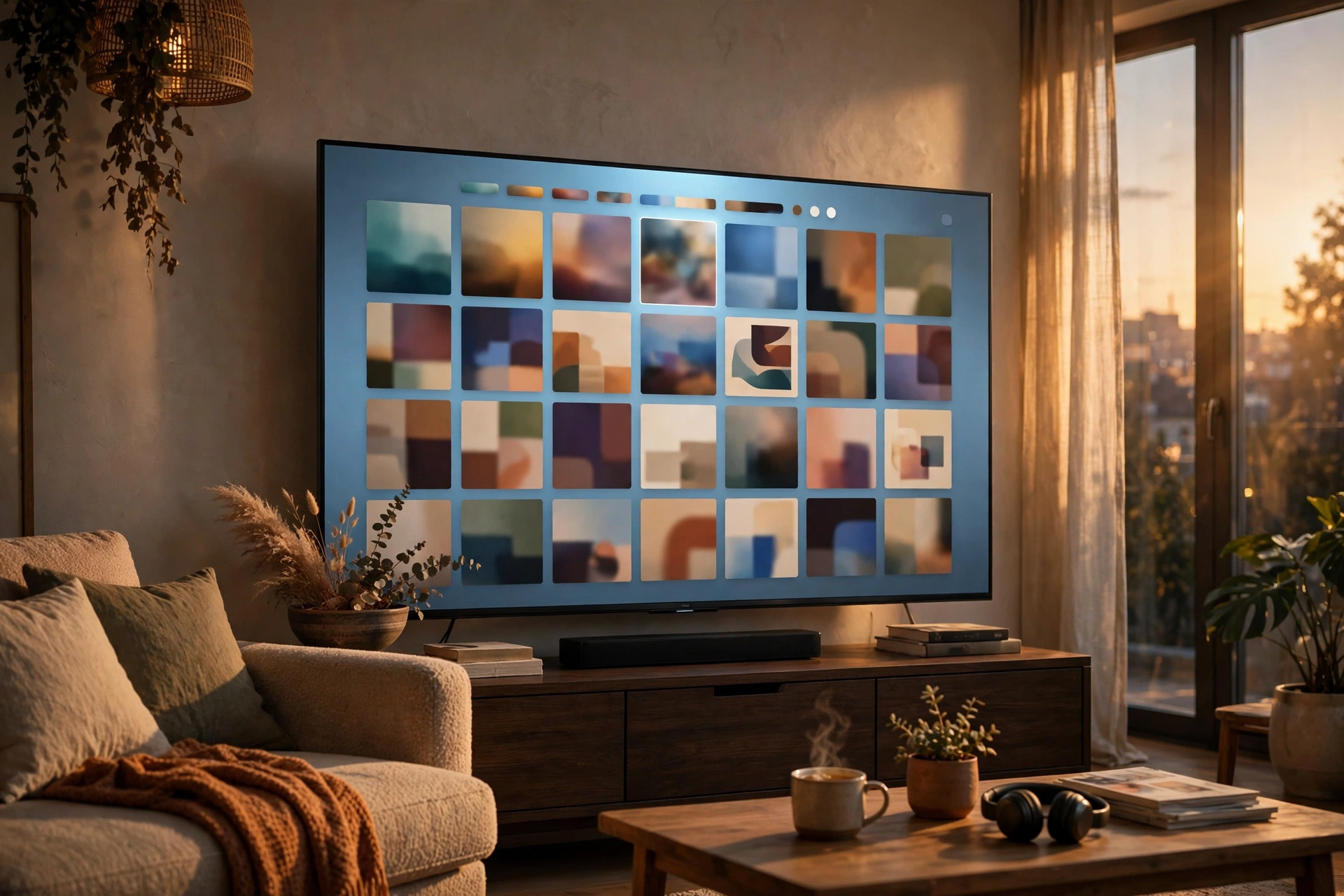
Watching movies on a phone is convenient, but nothing beats the big screen. If you own a smart TV running Android TV — from brands like Sony, TCL, Hisense, Philips, or Xiaomi — you can run Dooflix on Android TV and turn your television into a free cinema. The setup involves sideloading the app, since Dooflix is not on the Play Store, but the whole process takes about fifteen minutes.
This complete 2026 setup guide walks you through every step: preparing your TV, installing the APK, navigating with a remote, optimising picture quality, and fixing common problems. Whether you have a dedicated Android TV or a TV box running Android TV OS, you will be streaming by the end of this article.
What You Need
- A smart TV or TV box running Android TV (Android 8 or newer recommended).
- A stable Wi-Fi connection — 25 Mbps or more for 4K streaming.
- A file manager app such as X-plore File Manager or File Commander, installable from the Play Store on your TV.
- Optionally, a USB flash drive if you prefer transferring the APK from a computer.
Step 1: Allow Unknown Sources on Android TV
Like all Android systems, Android TV blocks sideloaded apps until you grant permission:
- Open Settings from the TV home screen (gear icon, top right).
- Go to Device Preferences > Security & restrictions.
- Select Unknown sources.
- Enable it for the app you will use to install the APK — your file manager or browser.
On some TVs the path is Settings > Apps > Special app access > Install unknown apps. The wording varies slightly between manufacturers, but the concept is identical.
Step 2: Download the Dooflix APK
You have two convenient options:
Option A: Download Directly on the TV
Open the TV’s browser (or install one like Puffin TV Browser from the Play Store), navigate to the official Dooflix download page, and download the latest APK (v1.0.8). Typing URLs with a TV remote is tedious, so consider using your phone to find the page and a short URL if available.
Option B: Transfer via USB
Download the APK from dooflix.pro.in/download on your computer or phone, copy it to a USB flash drive, plug the drive into your TV’s USB port, and open it with your file manager. This method avoids typing long addresses with a remote.
Step 3: Install Dooflix on Your TV
- Open your file manager and navigate to the downloaded APK (usually in the Downloads folder or on the USB drive).
- Select the APK file and choose Install.
- Review the permissions and confirm.
- When installation finishes, select Open — or find Dooflix later in your app drawer.
If your TV’s default launcher hides sideloaded apps, install a third-party launcher like ATV Launcher or use the “Apps” section to find Dooflix. You can also create a home-screen shortcut for one-click access.
Navigating Dooflix with a TV Remote
Dooflix’s interface is touch-oriented, but it works well with a standard Android TV remote:
- Directional pad: moves between posters, menus, and buttons.
- OK/Select: opens the highlighted item.
- Back: returns to the previous screen.
- Long-press OK on some remotes brings up extra options.
For searching titles, pair your phone as a keyboard: most Android TV brands offer a companion remote app (such as Google TV’s remote feature) that lets you type on your phone and send it to the TV. A cheap wireless air-mouse remote also makes navigation noticeably smoother.
Optimising Picture and Sound Quality
To get the best experience from Dooflix on Android TV:
- Set the default stream quality to the highest your connection supports — 4K on fast connections, 1080p otherwise.
- Enable hardware acceleration in the player settings for smoother playback.
- If your TV supports it, passthrough audio to your soundbar or home theatre system for surround sound.
- Turn on subtitles in your preferred language; Dooflix supports multiple subtitle tracks.
- Use an Ethernet connection instead of Wi-Fi where possible — it dramatically reduces buffering on 4K streams.
Keeping Dooflix Updated on Android TV
Android TV will not auto-update sideloaded apps. Every month or two, check the official download page for a new version, download the APK using either method above, and install it over your existing copy. Your watchlist and settings carry over untouched.
Troubleshooting Common Android TV Issues
App Does Not Appear in the Launcher
Many stock Android TV launchers hide sideloaded apps. Open Settings > Apps > See all apps to confirm Dooflix is installed, then use a custom launcher or the “Sideload Launcher” app from the Play Store to access it easily.
Video Stutters or Buffers
Lower the stream quality one step, clear the app cache (Settings > Apps > Dooflix > Clear cache), and restart your router. On older TV boxes with limited RAM, closing background apps frees up memory for smoother playback.
Remote Cannot Select Some Buttons
A few dialogs in touch-oriented apps do not take remote focus properly. A wireless air mouse solves this instantly and costs very little.
Parse Error During Installation
The APK file is likely corrupted or incomplete — re-download it from the official site. Also confirm your Android TV version meets the app’s minimum requirements. Phone and tablet users should see our Dooflix for Android guide, PC users the Dooflix for PC guide, and Apple users the Dooflix for iOS guide.
Frequently Asked Questions
Does Dooflix work on all Android TVs?
Dooflix works on most Android TV devices running Android 8 or newer, including TVs from Sony, TCL, Hisense, Philips, and Xiaomi, as well as boxes like the Mi Box and Nvidia Shield. Very old or heavily customised TV firmware may have issues.
Is it safe to install Dooflix on my smart TV?
Yes, provided you download the APK from the official website. The app requests only standard streaming permissions. Our Dooflix safety guide covers the details.
Can I use a VPN with Dooflix on Android TV?
Absolutely. Install a VPN app from the Play Store on your TV (most major VPN providers offer Android TV apps), connect, then open Dooflix. This protects your privacy while streaming.
Why does Dooflix not show up on my TV home screen?
Stock Android TV launchers often hide sideloaded apps. Use Sideload Launcher from the Play Store, or switch to a custom launcher like ATV Launcher to see all installed apps.
How much storage does Dooflix need on a TV?
The app itself is small (well under 100MB), but allow at least 500MB free for cache, artwork, and offline downloads. If space is tight, clear the cache periodically.
Enjoy the Big Screen
Setting up Dooflix on Android TV takes a little more effort than installing a Play Store app, but the payoff — thousands of movies and shows on your television, free — is well worth fifteen minutes of setup. Download the latest version from the official Dooflix download page, follow the steps above, and enjoy your new home cinema.