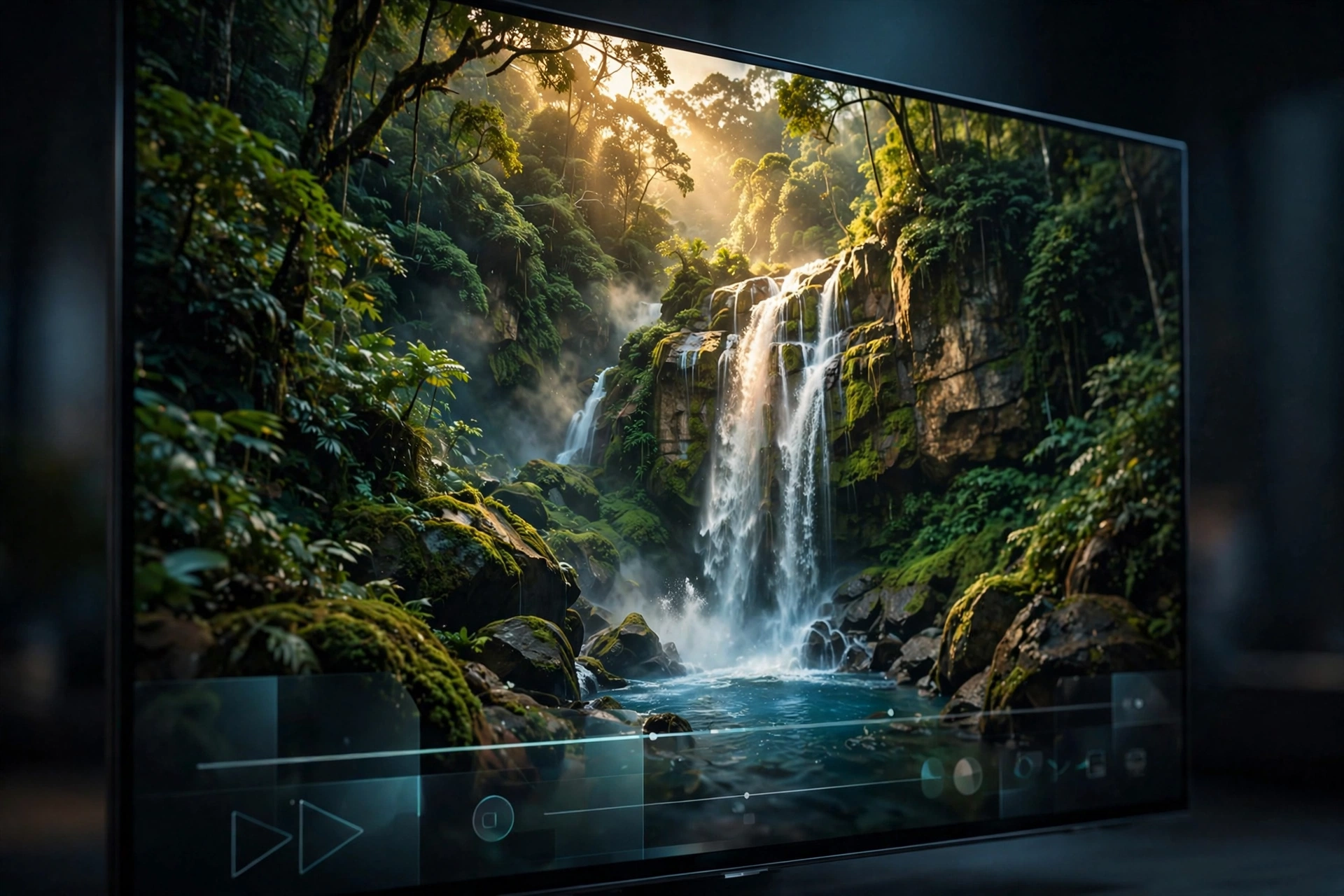
There is nothing more frustrating than settling in for movie night only to find the picture looks soft, blurry, or stuck at low resolution. The good news: Dooflix supports HD and 4K streaming — you just need to know where the quality settings live and make sure your setup can actually deliver those crisp pixels. Whether you are watching on a phone, a Firestick, or a 4K smart TV, this guide shows you exactly how to enable HD quality on Dooflix and fix it when streams refuse to go sharp.
Does Dooflix Support 4K Streaming?
Yes. Dooflix v1.0.8 can play streams up to 4K (2160p) quality, provided the source offers it. Not every title has a 4K link — availability depends on the movie or show and the sources currently online — but for popular recent releases, 4K and 1080p options are common. Older or obscure titles may top out at 720p or 480p simply because higher-quality sources do not exist for them.
It is important to understand that Dooflix does not host the videos; it finds streams from third-party sources. So “enabling 4K” really means two things: configuring Dooflix to prefer high-quality sources, and making sure your device and connection can handle them.
How to Enable HD and 4K Quality in Dooflix
Step 1: Set Your Preferred Quality
- Open Dooflix and go to Settings.
- Look for Playback or Video quality options.
- Set the default quality to 1080p or 4K / 2160p instead of Auto.
- Enable prefer high-quality sources if the option is present — this makes Dooflix sort 4K and 1080p links to the top of the source list.
Step 2: Choose the Best Source Manually
When you press play on a title, Dooflix shows a list of available sources, often labelled with their quality (4K, 1080p, 720p, 480p). Do not just tap the first one — scroll and pick a source explicitly marked 4K or 1080p. If the first high-quality link buffers, try the next one; source servers vary wildly in speed.
Step 3: Use an External Player for 4K
Dooflix’s built-in player is fine, but external players like VLC or MX Player often handle 4K decoding more efficiently, especially on mid-range devices. In Dooflix settings, set your preferred external player, and Dooflix will hand streams off to it automatically. On Fire TV devices, VLC for Fire TV is an excellent choice.
What You Need for Smooth 4K Playback
Settings alone are not enough — 4K streaming is demanding. Check these requirements:
- Internet speed: 4K needs a stable 25 Mbps or more; 1080p needs around 10 Mbps. Run a speed test on the device you stream on, not just your phone.
- Display: a 4K stream on a 1080p screen still looks great (downscaled), but you only get true 4K on a 4K display.
- Device power: 4K decoding needs a reasonably modern processor. Older Firesticks and budget TV boxes may stutter on 4K — 1080p is the sweet spot for them.
- Connection type: Ethernet beats Wi-Fi for stability. If you must use Wi-Fi, use the 5 GHz band and stay close to the router.
Fixing Blurry or Low-Quality Video
The Stream Starts Sharp, Then Goes Soft
This is adaptive streaming reacting to a dip in bandwidth. Pause for thirty seconds to let the buffer build, or manually select a 1080p source instead of 4K — a stable 1080p looks far better than a stuttering 4K.
Only Low-Quality Sources Are Listed
First, update Dooflix to the latest version from the official download page — newer releases have better scrapers that find more HD links. If a specific title only has SD sources, that is all that exists online right now; try again in a few days.
Constant Buffering on HD Streams
Clear the app cache (Settings > Apps > Dooflix > Clear cache), restart your router, close background apps eating bandwidth, and consider a Real-Debrid-style premium link service, which provides high-speed servers for buffer-free 4K.
4K Option Missing Entirely
Check that your default quality is not capped at 720p in settings, and confirm the title actually has 4K sources by checking the source list. Some devices also need hardware acceleration enabled in the player settings to unlock 4K decoding.
Dooflix 4K on Different Devices
Android phones and tablets: most modern phones handle 1080p easily; 4K works on flagships. Follow our Dooflix for Android guide for setup. Firestick: the Fire TV Stick 4K and 4K Max stream 4K smoothly; older HD sticks should stick to 1080p. Android TV: an excellent 4K platform when wired via Ethernet. PC: the most powerful option — see the Dooflix for PC guide. iPhone and iPad users should read the Dooflix for iOS guide.
Frequently Asked Questions
How do I change video quality in Dooflix?
Go to Settings > Playback (or Video quality) and set your preferred default quality to 1080p or 4K. You can also pick a specific quality each time by choosing a labelled source from the list before playback starts.
Why is Dooflix only showing 480p sources?
Either the title has no HD sources available right now, or your app version is outdated. Update to v1.0.8 from the official download page first; if the problem persists for one title, it is a source availability issue.
Does 4K streaming use a lot of data?
Yes — 4K can consume 7GB or more per hour. If you are on a limited data plan or mobile connection, stick to 720p or 1080p to avoid burning through your allowance.
Can my Firestick play Dooflix in 4K?
The Fire TV Stick 4K and 4K Max handle Dooflix 4K streams well on a fast connection. The basic HD Firestick models are limited to 1080p, which still looks excellent.
Will an external player improve quality?
An external player like VLC or MX Player will not create quality that is not in the source, but it can decode high-resolution streams more smoothly and offers better subtitle and audio controls than the built-in player.
Stream Sharp
Getting the best picture from Dooflix comes down to three things: set your quality preference high, pick labelled HD sources manually, and give your connection the bandwidth 4K demands. Do all three and you will be watching in crisp high definition. Grab the latest version from the official Dooflix download page to make sure you have the newest scrapers finding the best-quality links.
1 thought on “Dooflix 4K Streaming: How to Enable HD Quality”