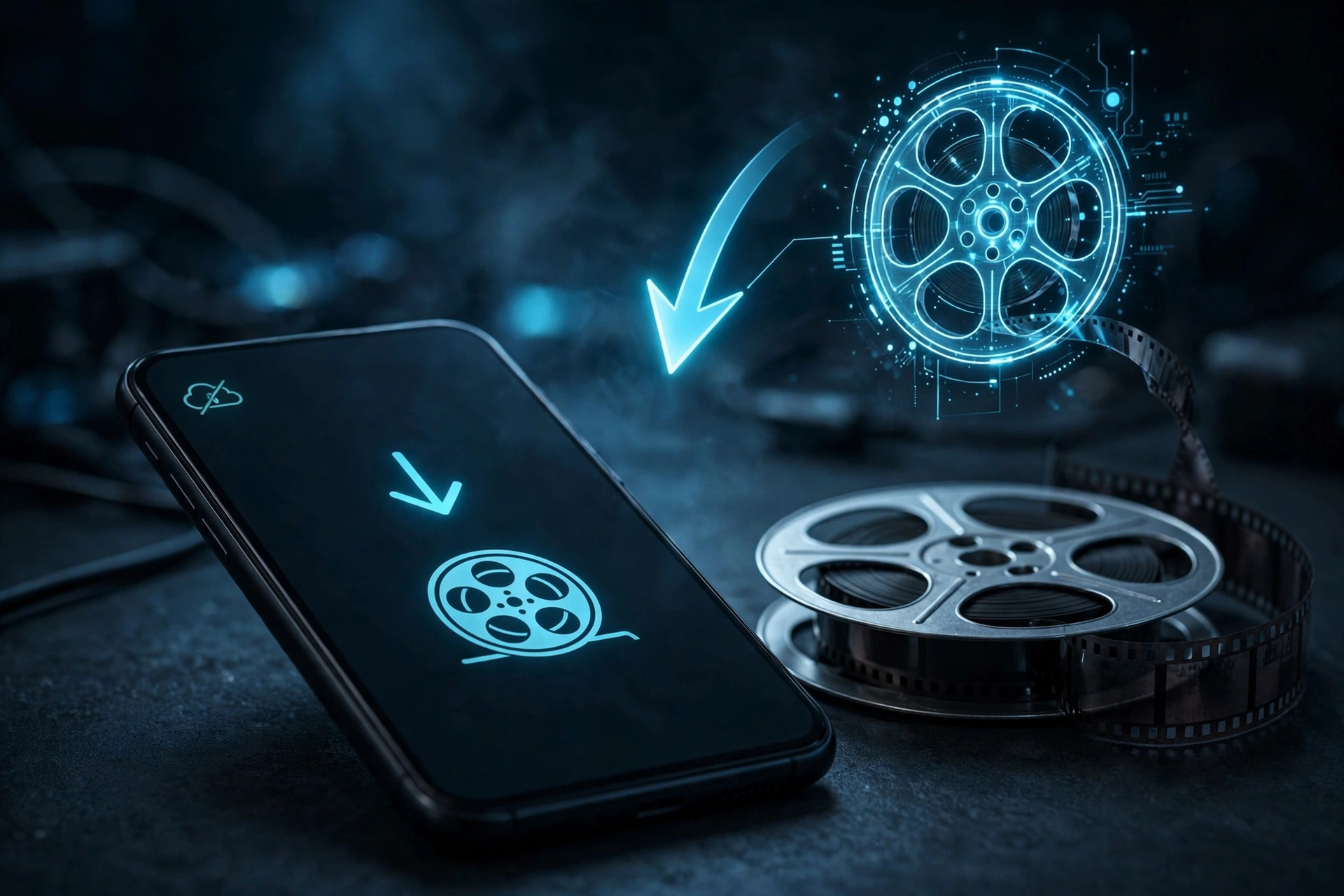
One of Dooflix’s most useful features is the ability to download movies for offline viewing. Whether you are boarding a long flight, commuting through dead zones, or just want to save mobile data, downloading lets you watch your favourite films and shows anywhere — no internet required. In this guide, we show you exactly how to download content on Dooflix in 2026, manage your storage, and fix common download problems.
The offline feature works on Android phones and tablets running Dooflix v1.0.8, and the process takes just a few taps per title. If you have not installed the app yet, start with our Dooflix download page to get the latest version.
How to Download Movies on Dooflix: Step by Step
Downloading is built right into the app — there is no separate tool or complicated setup. Here is the process:
- Open Dooflix and find the movie or TV show episode you want to save.
- Open the title’s details page.
- Look for the download icon (a downward arrow) next to the play button or in the episode list.
- Tap the download icon. If multiple qualities are offered, choose your preferred resolution — higher quality means a larger file.
- Wait for the download to complete. You can track progress in the app’s Downloads section.
- Once finished, open the Downloads section and tap the title to play it offline.
For TV series, you can usually download individual episodes or a whole season at once — handy for binge-watching on trips. Downloads are stored inside the app’s private storage and play through the Dooflix player with full subtitle support.
Download Quality and Storage Settings
Before downloading a big batch, check your quality settings. In Dooflix’s settings menu, you can set a default download quality — 720p is the sweet spot for most users, offering good clarity at a reasonable file size (roughly 800 MB–1.2 GB per movie). 1080p downloads look sharper but can exceed 2 GB per film, while 480p keeps files small for devices short on space.
Make sure you have enough free storage before starting. A good rule is to keep at least 2 GB free beyond what you plan to download, since the app needs working space during the download process. If your phone has a microSD card, check whether Dooflix allows saving to external storage in its settings — this can multiply your offline library capacity.
Downloads on Mobile Data
By default, Dooflix may restrict downloads to Wi-Fi to protect your data plan. If you need to download over mobile data, look for a “Download over mobile data” toggle in the settings. Be careful: HD movies consume gigabytes quickly, so only enable this if you have an generous data allowance.
Managing Your Offline Library
Downloaded titles live in the Downloads section of the app, separate from the streaming library. From there you can play, delete, or check the file details of each item. To free up space, delete watched movies — you can always re-download them later as long as the source is still available. A useful habit is to download a few titles before a trip and delete them when you return, keeping your storage lean.
Note that downloads are tied to the app: if you clear Dooflix’s data or uninstall it, your downloaded files are deleted too. They are also encrypted to the app, so you cannot simply copy the files to another device or player.
Tips for Building a Great Offline Library
A little planning makes offline viewing much more enjoyable. Download the night before you travel, while you are on fast home Wi-Fi, rather than rushing at the airport. Mix movies and a few TV episodes so you have options for different moods. If storage is tight, prioritise 720p — on a phone screen the difference from 1080p is barely noticeable, and you can fit nearly twice as many titles. Finally, double-check that each download completed fully before you leave Wi-Fi range; a partially downloaded file will not play offline.
Common Download Problems and Fixes
If a download will not start, first check your internet connection and make sure Dooflix has storage permission (Settings → Apps → Dooflix → Permissions). Downloads that stall midway are often caused by the source server timing out — try a different quality or source for the same title. If downloads fail consistently, clear the app cache and update to the latest version from our download page; v1.0.8 includes download reliability improvements.
On some devices, aggressive battery optimisation pauses background downloads when the screen turns off. Disable battery optimisation for Dooflix (Settings → Battery → App power management) so downloads continue while your phone is locked. Fire Stick and Android TV users should note that downloads work but storage is limited — a USB drive can help if your device supports it.
Frequently Asked Questions
Is downloading movies on Dooflix free?
Yes. Offline downloads are included free with the app — there is no premium tier or download limit imposed by Dooflix itself.
Where are Dooflix downloads stored?
In the app’s private storage, accessible through the Downloads section inside Dooflix. They cannot be played in other video players or copied to other devices.
Why did my download disappear?
Downloads are deleted if you clear the app’s data, uninstall the app, or manually remove them. Some sources also expire, requiring a re-download.
Can I download in 4K quality?
It depends on the title and source — most downloads top out at 1080p. Higher resolutions create very large files, so 720p or 1080p is recommended.
Do downloads work on PC via emulator?
Yes. If you run Dooflix on PC, the download feature works the same way, saving files inside the emulator’s storage. Our Android guide covers the mobile setup.
1 thought on “How to Download Movies for Offline Viewing on Dooflix”